

Surf7 Simple Maintenance Mode
Enable maintenance mode with one click. Logged-in users can view the site; others see a custom message or are redirected.

Put your WordPress website into maintenance mode with just one click
Surf7 Simple Maintenance Mode is a straightforward plugin that allows you to put your WordPress website into maintenance mode with just one click. When maintenance mode is enabled:
- Only logged-in users (any role) can access the frontend.
- Non-logged-in users will either see a predefined message or be redirected to a specific URL.
The plugin does not connect to any external service and stores nothing beyond a single WordPress option.
Features
Easy Activation
Enable or disable maintenance mode from the WordPress dashboard.
Custom Maintenance Message
Set a personalized message to display to visitors.
Redirect Option
Redirect visitors to another URL if desired.
Access Control
Only logged-in users can view the site when maintenance mode is active.
Use Cases
Performing website updates or maintenance tasks.
Launching a new website or making significant changes.
Temporarily restricting access to the public.
Screenshots
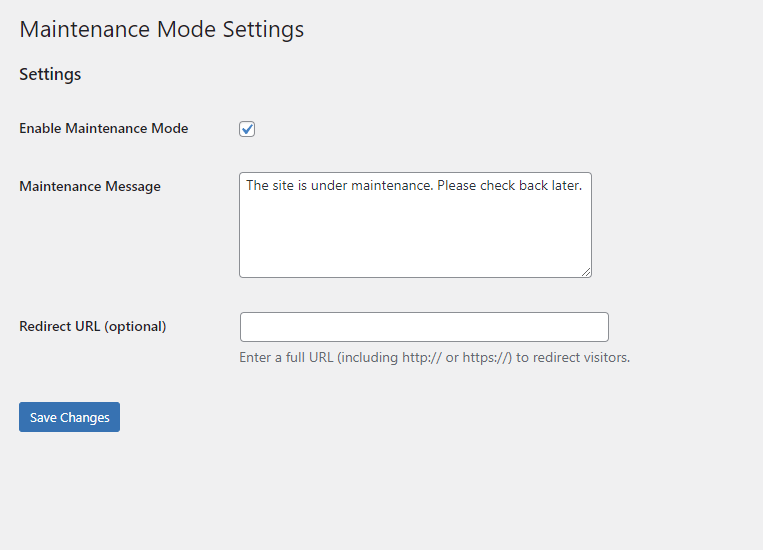
The maintenance mode settings page, where you can enable the mode, set a custom message, or specify a redirect URL.
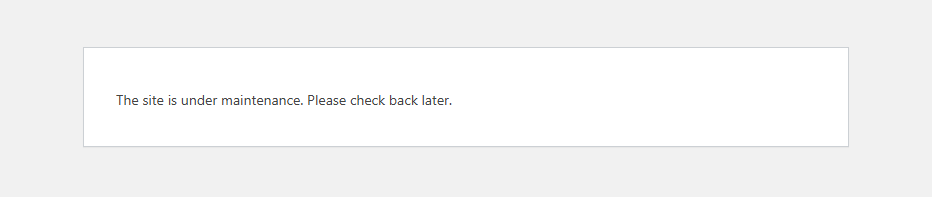
An example of the maintenance message displayed to non-logged-in users.
Installation
Step 1. Upload the Plugin Files
Upload the
surf7-simple-maintenance-modefolder to the/wp-content/plugins/directory. Alternatively, install the plugin through the WordPress plugins screen directly by navigating to Plugins > Add New, searching for "Surf7 Simple Maintenance Mode," and clicking Install Now.Step 2. Activate the Plugin
Activate the plugin through the Plugins screen in WordPress.
Step 3. Configure the Settings
Go to Settings > Maintenance Mode. Enable maintenance mode by checking the Enable Maintenance Mode option. Set a custom maintenance message or specify a redirect URL. Click Save Changes.
Requirements
- Version
- 1.1.0
- Requires at least
- WordPress 5.0
- Tested up to
- WordPress 7.1
- Requires PHP
- 7.0
- License
- GPLv2 or later
Frequently Asked Questions
How do I enable maintenance mode?
- Navigate to Settings > Maintenance Mode in your WordPress dashboard.
- Check the Enable Maintenance Mode option.
- Click Save Changes.
Can I customize the maintenance message?
Yes. Set a custom message in the Maintenance Message field on the settings page. Basic HTML (links, bold, italic, lists, paragraphs and line breaks) is allowed.
How do I redirect visitors to another URL?
- Enter the full URL (including
http://orhttps://) in the Redirect URL field on the settings page. - Leave the field empty if you prefer to display the maintenance message instead.
- The URL must point to a different domain than your site. A URL on your own site is ignored, because it would cause a redirect loop.
Will logged-in users be affected by maintenance mode?
No. Logged-in users (any role) can access the site normally when maintenance mode is enabled.
What HTTP status is sent to visitors?
The maintenance message is served with a 503 Service Unavailable status, which tells search engines the outage is temporary. The redirect option sends a 302 Found.
Trusted by clients across Malaysia and beyond.


It was an excellent service I received from Surf7 Internet Consulting company. Mr Ben is a highly professional IT person which has given me clear advice and solution for my website design requirement. I would highly recommend him to those in need of website service. Keep up your good work Mr Ben and Good luck.


Featured Clients


















Download Surf7 Simple Maintenance Mode
Enable maintenance mode with one click. Logged-in users can view the site; others see a custom message or are redirected.